


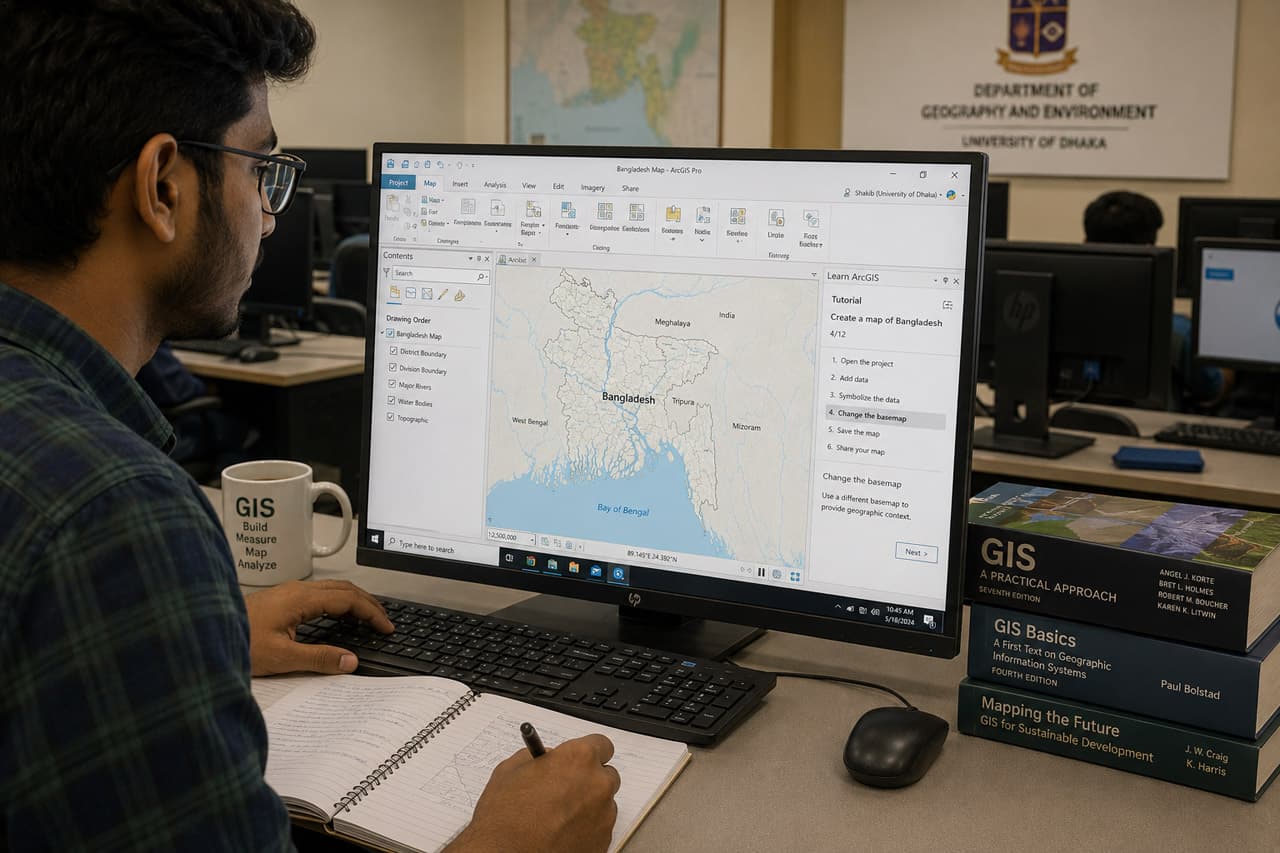
Hero image caption: A GIS computer lab where new users are opening ArcGIS Pro for the first time, with Bangladesh boundary layers, satellite imagery, and map layouts visible on classroom monitors.
ArcGIS Pro is the industry standard in Bangladesh’s government and consultancy sector — and if you’ve never opened it before, here is your orientation.
For many Bangladesh geospatial projects, especially in government, donor-funded programmes, utilities, infrastructure, urban planning, agriculture, disaster management, and consultancy work, ArcGIS Pro is more than a mapping tool. It is a complete GIS workspace where you manage data, analyse locations, prepare professional maps, automate workflows, and share outputs with non-technical decision-makers. At first, the interface may feel busy. There are ribbons, panes, maps, layouts, databases, tools, and project files. But once you understand the structure, ArcGIS Pro becomes much easier to navigate.
This beginner guide walks you through the fundamentals using Bangladesh examples: district boundaries, DEM data, flood-prone areas, roads, and administrative maps.
The ArcGIS Pro Interface
When you open ArcGIS Pro, you usually start by creating or opening a project. A project stores your maps, layouts, geodatabases, toolboxes, folder connections, and project settings. ArcGIS Pro uses a ribbon-based interface, similar to Microsoft Office. Tools appear in tabs such as Map, Insert, Analysis, View, Edit, and Share.
What you should see: a central map view, a Contents pane on the left, and a Catalog pane often on the right. Esri’s own introduction explains that the Contents pane lists items in the active view, while the Catalog pane lists project items such as databases, toolboxes, and folder connections. (pro.arcgis.com)
| Panel name | Location | What it does | Bangladesh use case | |
|---|---|---|---|---|
| ———————— | ————————————- | ————————————————————— | ——————————————————————– | |
| Contents pane | Usually left side | Lists map layers, tables, layouts, and drawing order | Turn district, road, river, and DEM layers on/off | |
| Catalog pane | Usually right side | Manages project folders, databases, toolboxes, and portal items | Connect to a folder containing Bangladesh shapefiles and raster data | |
| Map view | Centre | Displays spatial layers for editing, analysis, and navigation | View Bangladesh districts, flood zones, or urban expansion | |
| Geoprocessing pane | Opens from Analysis → Tools | Searches and runs analysis tools | Clip DEM, buffer roads, spatial join schools to upazilas | |
| Attribute table | Opens from layer context menu | Shows tabular records behind a layer | Check district names, population fields, or road classifications | |
| Symbology pane | Opens from layer properties or ribbon | Styles layers by colour, category, class, or value | Create choropleth maps by literacy rate or population density | |
| Layout view | Created from Insert → New Layout | Designs printable/exportable maps | Prepare district map for a government report | |
| Python window / Notebook | Analysis or View options | Runs ArcPy commands and automation scripts | Batch process Bangladesh raster or vector datasets |
The key beginner habit is this: do not try to memorize every tool. Learn where things live. Layers are managed in Contents. Data connections are managed in Catalog. Analysis tools are found in Geoprocessing. Map design happens in Layout.
Projects, Geodatabases and Layers
ArcGIS Pro organizes work through projects. When you create a new project, ArcGIS Pro usually creates a project folder, a default file geodatabase, and a toolbox. A file geodatabase is Esri’s recommended local data container for many projects. Esri defines a file geodatabase as a collection of files in a folder on disk that can store, query, and manage spatial and nonspatial data. (pro.arcgis.com)
Think of it this way:
- Project (
.aprx): remembers your maps, layouts, connections, and settings.
- Geodatabase (
.gdb): stores feature classes, rasters, and tables.
- Layer: a visual reference to data, with styling and properties.
- Feature class: actual vector data such as districts, roads, rivers, schools.
- Raster dataset: grid data such as DEM, rainfall, satellite imagery, or land cover.
For Bangladesh projects, it is good practice to create a folder structure like this:
C:/Projects/Bangladesh/
  Bangladesh.aprx
  Bangladesh.gdb
  data_raw/
  data_processed/
  exports/
  maps/
  scripts/
Keep raw data separate from processed data. Never overwrite your original boundary or raster files. This habit will save you when a supervisor asks, “Which source did you use?”
Your First Bangladesh Map
Start with a simple map: Bangladesh district boundaries with a basemap.
- Open ArcGIS Pro.
- Choose Map template.
- Name the project
BangladeshBeginnerMap.
- Click Create.
- Go to Map → Add Data.
- Browse to your Bangladesh district boundary shapefile or feature class.
- Click OK.
What you should see: Bangladesh appears in the map view. In the Contents pane, your district layer appears above the basemap. If the layer does not appear, right-click it and choose Zoom To Layer.
Now style the districts. Click the layer in Contents, then go to Feature Layer → Appearance → Symbology. Choose Unique Values if you want to colour by division, or Graduated Colors if you have a numeric field such as population density.
For a clean first map, use division-wise colours. Label the districts by right-clicking the layer and selecting Label. If labels overlap too much, reduce the scale or label only at larger zoom levels.
Working with Bangladesh Data
Bangladesh data often comes from mixed sources: government shapefiles, Excel tables, CSV files, scanned maps, GPS surveys, OpenStreetMap extracts, satellite imagery, and donor project datasets. Your job is to make them work together.
Common beginner tasks include:
- Adding district, upazila, or union boundaries.
- Joining a CSV table to a boundary layer using a code field.
- Reprojecting data to a suitable coordinate system.
- Cleaning spelling differences in district or upazila names.
- Converting shapefiles into a file geodatabase.
- Creating layouts for reports and presentations.
If you receive a CSV with population by district, do not join by district name unless necessary. Use official codes where possible. Names may vary: Chattogram/Chittagong, Cumilla/Comilla, Jashore/Jessore. Code-based joins reduce errors.
To add a CSV, use Map → Add Data. Then right-click the district layer, go to Joins and Relates, and create a join using the common field. Open the attribute table and confirm that the new columns appear.
Spatial Analysis: A Simple Example
Let us say you have a Bangladesh DEM raster and want to clip it to the national boundary. This is a common first raster-processing task. In ArcGIS Pro, open Analysis → Tools, search for Clip Raster, and fill in the input raster, output raster, rectangle or template dataset, and clipping geometry. Esri’s Clip Raster documentation explains that the tool extracts a portion of a raster dataset based on a template extent, and the output includes pixels intersecting the template extent. (pro.arcgis.com)
Here is the same workflow using ArcPy:
import arcpy

arcpy.env.workspace = r"C:/Projects/Bangladesh/Bangladesh.gdb"
arcpy.env.overwriteOutput = True

arcpy.management.Clip(
    in_raster="Bangladesh_SRTM.tif",
    rectangle="88.0 20.6 92.7 26.7",
    out_raster="Bangladesh_DEM_clipped.tif",
    in_template_dataset="Bangladesh_boundary",
    clipping_geometry="ClippingGeometry"
)
print("Clipping complete.")
What you should see after running the tool: a new raster appears in the Contents pane, clipped to the shape or extent of Bangladesh. You can then use it for elevation maps, slope analysis, flood exposure screening, or terrain visualization.
ArcGIS Pro keeps geoprocessing history, which helps you review which tools were run and with what parameters. This is useful when documenting a Bangladesh project workflow or repeating the same process for multiple divisions. (pro.arcgis.com)
Next Steps
Once you are comfortable opening projects, adding data, styling layers, and running a simple tool, focus on five essential ArcGIS Pro skills for Bangladesh projects:
- Georeferencing old maps: align scanned mouza maps, planning maps, or historical survey sheets.
- Spatial join: count schools, clinics, roads, or households inside districts, upazilas, or buffers.
- ModelBuilder: automate repeated workflows such as clipping, buffering, joining, and exporting.
- Layout creation: prepare professional maps with title, legend, scale bar, north arrow, and data source.
- Geodatabase management: organize feature classes, domains, subtypes, rasters, and tables properly.
“ArcGIS Pro changed how we present spatial data to non-technical decision-makers. Instead of showing tables first, we now show a clean map, then explain the numbers behind it. That shift made meetings much more productive.” — Government GIS officer, Bangladesh
The best way to learn ArcGIS Pro is not by watching endless videos. Open the software and complete small Bangladesh tasks: make a district map, clip a DEM, join census data, create a flood exposure layout, or map road access to health facilities. Each task teaches one part of the interface.
ArcGIS Pro may look complex on day one, but the logic is consistent: manage data in Catalog, control layers in Contents, run tools in Geoprocessing, design outputs in Layout, and automate with ArcPy when the work becomes repetitive. Once you understand that pattern, you are no longer just opening software — you are building professional GIS workflows.












Responses (0 )