


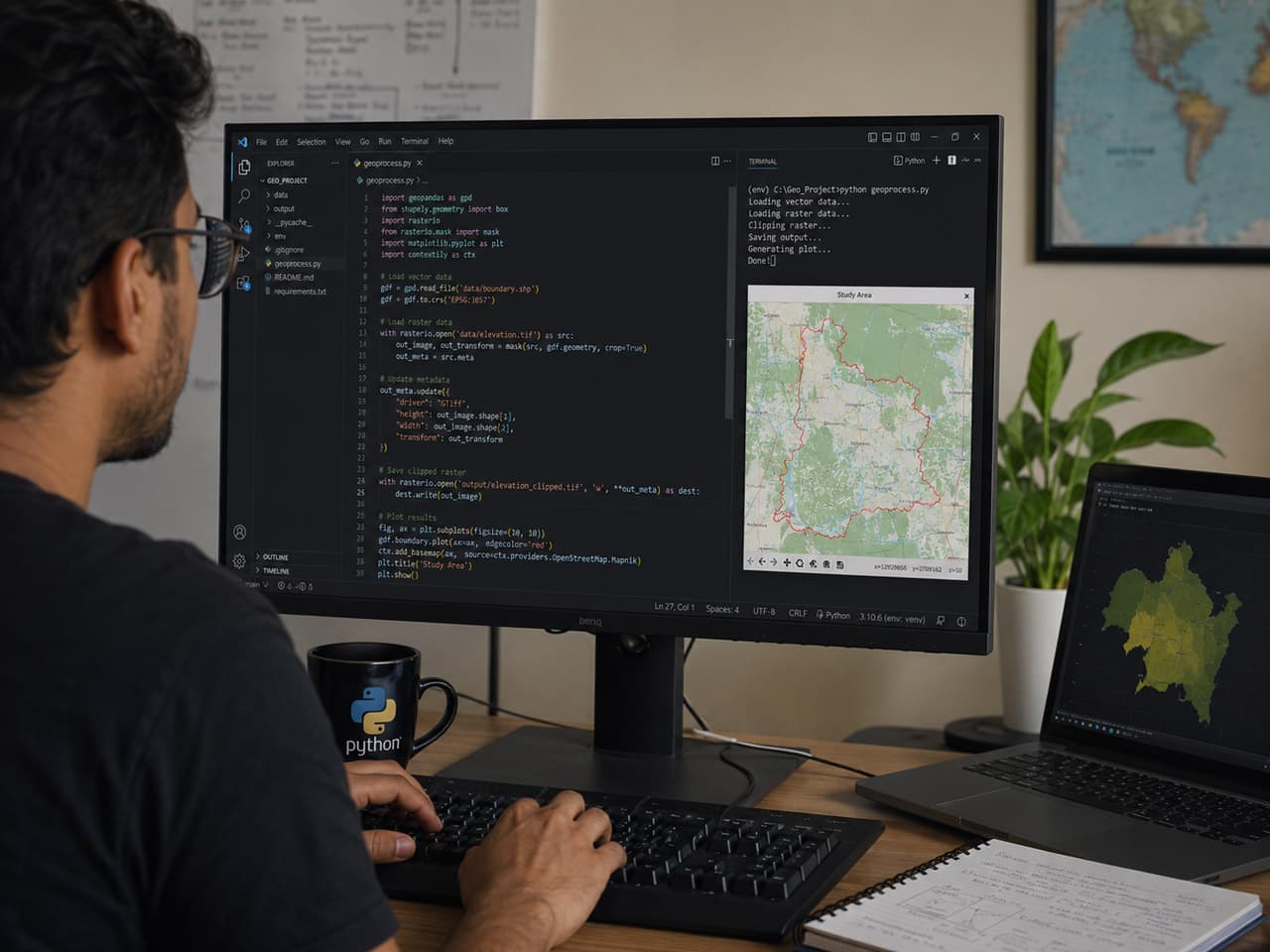
Hero image caption: A GIS analyst writing Python code beside a QGIS project window — automating projection, overlay, clipping, and flood-statistics reporting from raw spatial data.
If you spent last Tuesday clipping, projecting, and merging shapefiles manually in QGIS — there’s a better way. You could have done all of it with 15 lines of Python. That does not mean every GIS analyst must become a software engineer. It means you should stop repeating the same clicks when a script can do them faster, more consistently, and with fewer mistakes.
Automation is not about replacing GIS judgment. It is about freeing your judgment from routine work. You still decide which data is valid, which projection is appropriate, which overlay method makes sense, and how results should be interpreted. Python simply helps you run those decisions across 64 districts, 500 unions, 2,000 flood polygons, or 10 years of satellite-derived outputs without losing your afternoon to menus and progress bars.
Why Automate?
Manual GIS work is fine when the task is exploratory: checking a layer, testing symbology, inspecting a boundary, or making a one-off map. But when the same task repeats, manual work becomes risky. Did you clip all districts with the same mask? Did you use the same CRS? Did you calculate area before or after reprojection? Did you export the final version or the draft version?
Automation gives you three advantages.
First, repeatability. If a ministry, NGO, or research supervisor asks you to rerun the flood analysis with updated inundation data, you can run the same script again.
Second, auditability. A script is a record of what you did. It shows the input files, projection, overlay operation, grouping field, and output.
Third, scale. A task that is annoying for one district becomes painful for 64 districts and impossible for thousands of features. Python handles loops better than humans do.
Common manual GIS tasks that can be automated include:
- Projection conversion — reprojecting many layers into a common CRS.
- Spatial join — assigning points, polygons, or raster-derived features to administrative units.
- Clipping — extracting layers by district, basin, buffer, or study boundary.
- Attribute calculation — computing area, length, density, risk score, or class labels.
- Export — saving maps, shapefiles, GeoPackages, CSV summaries, or images in batch.
Setting Up Your Environment
For most analysts, the easiest starting point is QGIS plus Python. QGIS already ships with a Python environment and the PyQGIS API. You can open the Python Console inside QGIS and automate layers already loaded in your project. This is excellent for batch exporting, styling, running processing tools, and interacting with map layouts.
For standalone analysis, install a Python distribution such as Miniconda or Mambaforge and create a clean environment. Conda is often easier than raw pip for geospatial work because libraries such as GDAL, PROJ, GEOS, Fiona, Rasterio, and Shapely have compiled dependencies. GeoPandas itself combines pandas-style tabular analysis with geometry operations through Shapely, file I/O through GDAL/pyogrio, and coordinate transformations through pyproj. (GeoPandas)
A practical environment might look like this:
conda create -n geoauto python=3.11
conda activate geoauto
conda install -c conda-forge geopandas rasterio pyproj shapely fiona matplotlib jupyter
Use pip when needed, but for geospatial stacks, conda-forge usually reduces installation pain.
| Library | Use case | Install command | Documentation link | |
|---|---|---|---|---|
| ————— | ———————————————————- | ——————————————– | ————————————————————————————————————————- | |
| GeoPandas | Vector data analysis, overlays, joins, CRS handling | conda install -c conda-forge geopandas | GeoPandas docs | |
| Shapely | Geometry operations: intersects, buffers, unions, validity | conda install -c conda-forge shapely | Shapely docs | |
| Rasterio | Reading, writing, masking, and transforming raster data | conda install -c conda-forge rasterio | Rasterio docs | |
| PyProj | CRS definitions and coordinate transformations | conda install -c conda-forge pyproj | PyProj docs | |
| GDAL | Core raster/vector translation and command-line tools | conda install -c conda-forge gdal | GDAL docs | |
| Fiona / Pyogrio | Vector file reading and writing | conda install -c conda-forge fiona pyogrio | Fiona docs | |
| PyQGIS | Automating QGIS projects, layers, layouts, and processing | Installed with QGIS | <a href="https://docs.qgis.org/latest/en/docs/pyqgisdevelopercookbook/cheatsheet.html?utmsource=chatgpt.com”>PyQGIS cookbook | |
| PostGIS | Spatial SQL in PostgreSQL for production geodatabases | OS/package manager + PostgreSQL | PostGIS docs |
GeoPandas: Spatial Analysis in Python
GeoPandas feels familiar if you already know pandas. A GeoDataFrame is like a spreadsheet with a geometry column. You can filter rows, join tables, calculate fields, group results, and export outputs. The difference is that geometry-aware methods let you overlay, intersect, buffer, dissolve, and spatially join features.
GeoPandas supports spatial joins, where records from two GeoDataFrames are combined based on spatial relationships such as intersects, contains, or within. It also supports overlay operations such as intersection, union, difference, and symmetric difference. (<a href="https://geopandas.org/en/stable/gallery/spatialjoins.html?utmsource=chatgpt.com”>GeoPandas)
One rule matters more than almost anything: use the right CRS before measuring area or distance. GeoPandas and Shapely perform planar geometry calculations in CRS units, so area calculations in latitude-longitude degrees are not meaningful for reporting square kilometres. Reproject first, then calculate. (py.geocompx.org)
QGIS Python Console
The QGIS Python Console is ideal when you want to automate work inside an existing QGIS project. You can access loaded layers, run processing algorithms, export layouts, change symbology, or write files. QGIS is a free and open-source desktop GIS, and its Python API gives analysts access to much of the same functionality available through the interface. (OSGeo)
For example, if you have ten layers open and want to reproject them all, scripting is much safer than right-clicking each layer one by one. But be careful: the older writeAsVectorFormat style is common in examples, while newer QGIS versions also support updated writer APIs. For production scripts, check your installed QGIS version and test on a copy of your data.
A Real Bangladesh Workflow: District Flood Stats
Imagine you have a Bangladesh district boundary layer and a 2024 flood inundation polygon layer. Your manager asks: “Which districts have the largest flooded area?” You could manually intersect layers in QGIS, calculate geometry, export a table, sort it, and copy results. Or you can run this:
import geopandas as gpd

districts = gpd.read_file("bangladesh_districts.shp")
flood_zones = gpd.read_file("flood_inundation_2024.shp")

# Reproject to Bangladesh Transverse Mercator (EPSG:32646)
districts = districts.to_crs(epsg=32646)
flood_zones = flood_zones.to_crs(epsg=32646)

# Calculate flood area per district
joined = gpd.overlay(districts, flood_zones, how="intersection")
joined["flood_area_km2"] = joined.geometry.area / 1e6
stats = joined.groupby("DIST_NAME")["flood_area_km2"].sum().reset_index()

print(stats.sort_values("flood_area_km2", ascending=False).head(10))
The logic is simple. Read both layers. Reproject them into a metre-based CRS. Intersect district polygons with flood polygons. Calculate area. Group by district name. Sort the result.
A senior analyst would add a few more safeguards: check invalid geometries, confirm CRS definitions, dissolve flood polygons if needed, remove slivers, and export the result to CSV or GeoPackage. But the core workflow remains short and readable.
Here is a QGIS Python Console version for batch reprojection of loaded vector layers:
from qgis.core import QgsProject, QgsCoordinateReferenceSystem, QgsVectorFileWriter

crs_target = QgsCoordinateReferenceSystem("EPSG:32646")

for layer in QgsProject.instance().mapLayers().values():
    QgsVectorFileWriter.writeAsVectorFormat(
        layer,
        f"/output/{layer.name()}_btm.shp",
        "utf-8",
        crs_target,
        "ESRI Shapefile"
    )
In real projects, prefer GeoPackage over Shapefile when possible. Shapefile has field-name length limits, weaker Unicode handling, multiple sidecar files, and geometry limitations. GeoPackage is cleaner for modern workflows.
“Before scripting, our flood exposure reports took nearly a week because every district needed manual clipping and checking. Once we standardised the Python workflow, the same job became a one-day process — and most of that day was validation, not clicking.” — GIS analyst, SPARRSO
Going Further
Once you are comfortable with scripts, automation becomes a ladder.
At the first level, you automate local files: read shapefiles, reproject, overlay, calculate, export. At the second level, you automate folders: loop through districts, years, sensors, or satellite scenes. At the third level, you connect databases: read from PostGIS, write results back to tables, and schedule jobs. At the fourth level, you publish: generate map tiles, dashboards, reports, and APIs.
For Bangladesh workflows, useful next projects include automated union-level flood exposure, cyclone shelter service-area analysis, road accessibility under inundation, land-use change summaries from classified rasters, and batch map exports for district disaster management committees.
The habit to build is not “write clever code.” The habit is to make every repeatable GIS operation explicit. Name your inputs. Set your CRS. Document assumptions. Save outputs with dates. Keep scripts in version control. Test on a small area before running nationally.
Automation will not make you a better GIS analyst by itself. But it will give you more time to be one. Instead of spending your day repeating commands, you can spend it asking better spatial questions, checking uncertainty, validating results, and explaining what the map actually means.
Sources / References
- GeoPandas documentation. “Documentation” and API reference. GeoPandas documentation
- GeoPandas documentation. “Spatial Joins.” <a href="https://geopandas.org/en/stable/gallery/spatialjoins.html?utmsource=chatgpt.com”>GeoPandas spatial joins
- GeoPandas documentation. “geopandas.overlay.” GeoPandas overlay API
- GeoPandas community documentation. “Ecosystem / dependencies.” GeoPandas ecosystem
- QGIS documentation. “PyQGIS Developer Cookbook — Cheat sheet.” <a href="https://docs.qgis.org/latest/en/docs/pyqgisdevelopercookbook/cheatsheet.html?utmsource=chatgpt.com”>PyQGIS Developer Cookbook
- OSGeo. “QGIS Desktop.” QGIS Desktop project page
- GDAL documentation. “GDAL — Geospatial Data Abstraction Library.” GDAL documentation
- PostGIS documentation. “Documentation.” PostGIS documentation
- Geocomputation with Python. “Reprojecting geographic data.” Geocomputation with Python: Reprojecting geographic data








Responses (0 )