


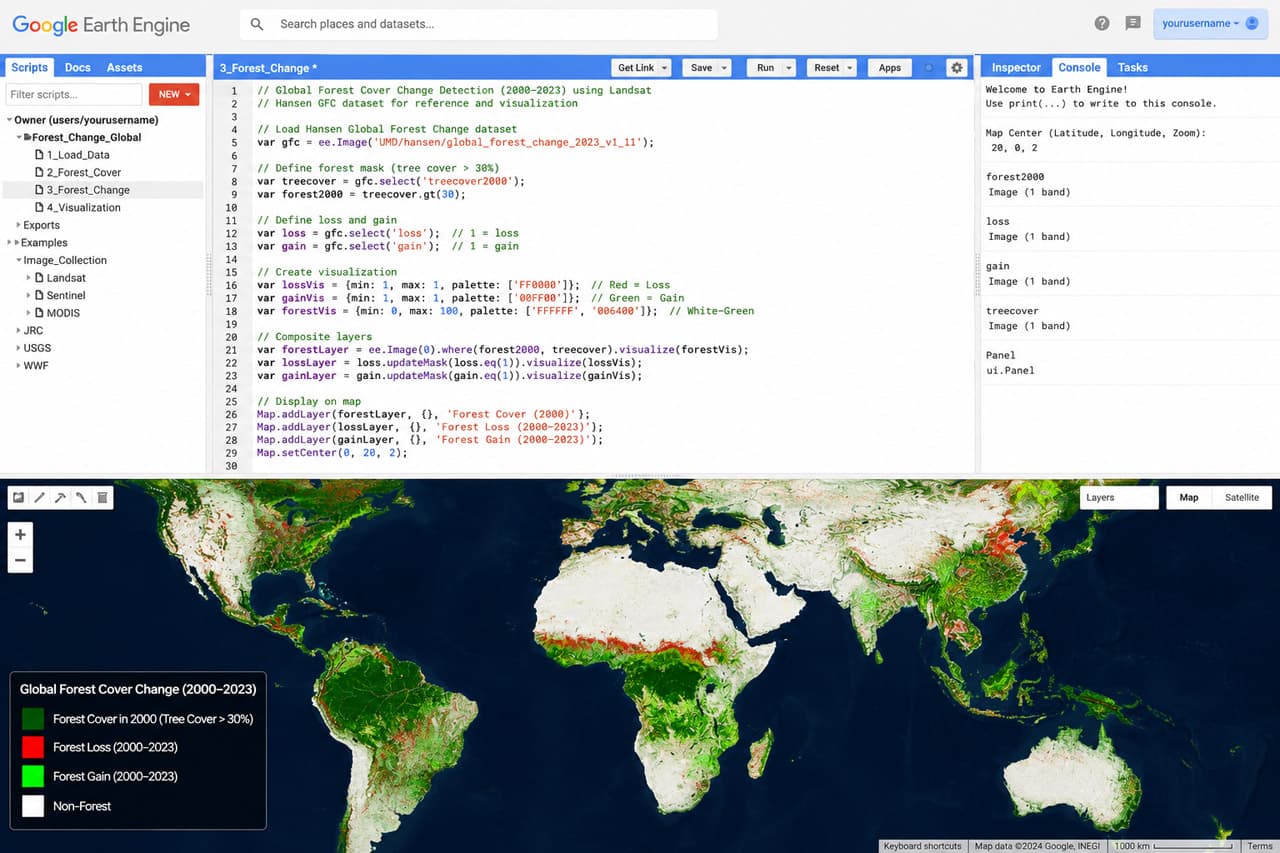
Hero image caption: Google Earth Engine Code Editor screenshot showing a JavaScript script on the left, Bangladesh satellite imagery in the map panel, and the Tasks tab ready for export.
With Google Earth Engine, you can analyse 50 years of Landsat data for all of Bangladesh in under a minute. The cloud does the computing — you just write the query.
That single idea is what makes Earth Engine so exciting. You do not need to download hundreds of satellite scenes, unzip them, mosaic them, clip them, and then wait for your laptop to struggle. Instead, Earth Engine gives you access to a massive cloud-hosted catalogue of satellite imagery and geospatial datasets, then lets you process them with a few lines of JavaScript or Python. For a beginner, it may look intimidating at first. But once you understand the basic pattern — choose an area, choose a dataset, filter by date, calculate something, display or export — the platform becomes much friendlier.
What Is Google Earth Engine?
Google Earth Engine, often called GEE, is a cloud-based platform for planetary-scale geospatial analysis. Google describes it as combining a multi-petabyte catalogue of satellite imagery and geospatial datasets with planetary-scale analysis capabilities, used to detect changes, map trends, and quantify differences on Earth’s surface. It remains free for academic and research use, while commercial use is also supported. (Google Earth Engine)
For Bangladesh, this is powerful. Our country is small in area but extremely dynamic: rivers shift, floods spread, cities expand, cropland changes seasonally, mangroves face pressure, and drought affects parts of the northwest. Traditional remote sensing workflows require downloading large raster files and processing them locally. GEE moves that heavy work to the cloud.
The main interface beginners use is the Code Editor, a browser-based environment where you write JavaScript, view maps, inspect pixels, print results, and launch exports. You can also use Earth Engine through Python, but the Code Editor is the easiest starting point.
Setting Up: Account and Code Editor
First, go to the Earth Engine website and sign in with a Google account. If you are using it for academic, research, nonprofit, or learning purposes, follow the registration steps and request access if required. Once your account is approved, open the Code Editor.
What you should see: a large map in the centre, a code panel on the left, and tabs such as Inspector, Console, and Tasks on the right. The Console shows printed outputs. The Tasks tab is where exports appear. The map panel behaves like a normal web map: zoom, pan, and inspect locations.
Before writing code, remember three core Earth Engine object types:
- Geometry — your study area, such as a rectangle around Bangladesh.
- ImageCollection — a time series of images, such as all Sentinel-2 scenes.
- Image — a single image, often created by filtering and compositing a collection.
Once you understand these three, most beginner scripts become readable.
Your First Script: Loading and Displaying Imagery
Let us create a cloud-filtered Sentinel-2 composite for Bangladesh. Sentinel-2 is useful for vegetation, water, agriculture, land cover, and urban studies. The Sentinel-2 mission provides high-resolution multispectral imagery with visible and near-infrared bands at 10 metres, red-edge and shortwave infrared bands at 20 metres, and atmospheric bands at 60 metres. (Google for Developers)
Paste this into the Code Editor and click Run:
var bangladesh = ee.Geometry.Rectangle([88.0, 20.6, 92.7, 26.7]);

var s2 = ee.ImageCollection("COPERNICUS/S2_SR_HARMONIZED")
  .filterBounds(bangladesh)
  .filterDate("2024-01-01", "2024-03-31")
  .filter(ee.Filter.lt("CLOUDY_PIXEL_PERCENTAGE", 10))
  .median()
  .clip(bangladesh);

Map.centerObject(bangladesh, 7);
Map.addLayer(s2, {bands: ["B4","B3","B2"], min:0, max:3000}, "Bangladesh True Color");
What you should see: the map zooms to Bangladesh and displays a natural-colour satellite composite. The layer name Bangladesh True Color appears in the map layer list. If the image looks too dark or too bright, adjust the min and max values. The bands B4, B3, and B2 represent red, green, and blue, so this creates a true-colour view similar to what the human eye would see.
The line .median() is important. Instead of choosing one image, Earth Engine takes all matching Sentinel-2 scenes in the date range and calculates a median composite. This reduces cloud effects and creates a cleaner image.
Calculating NDVI for Bangladesh
NDVI, or Normalized Difference Vegetation Index, is one of the most common remote sensing indices. It compares near-infrared and red reflectance to estimate vegetation greenness. Healthy vegetation reflects strongly in near-infrared and absorbs more red light, so NDVI becomes higher in greener areas.
For Sentinel-2, band B8 is near-infrared and band B4 is red. Add this code below your first script:
var nir = s2.select("B8");
var red = s2.select("B4");
var ndvi = nir.subtract(red).divide(nir.add(red)).rename("NDVI");

Export.image.toDrive({
  image: ndvi,
  description: "Bangladesh_NDVI_2024",
  scale: 10,
  region: bangladesh,
  maxPixels: 1e10
});
To display the NDVI before exporting, you can also add:
Map.addLayer(
  ndvi,
  {min: -0.2, max: 0.8, palette: ["blue", "white", "green"]},
  "Bangladesh NDVI"
);
What you should see: greener areas appear with higher NDVI values, while rivers, waterbodies, sandbars, and dense urban surfaces appear lower. In Bangladesh, NDVI patterns can reveal cropland intensity, vegetation cover, forested zones, chars, and seasonal differences.
Earth Engine’s official tutorials also show NDVI as a common example of mapping a function over image collections, reinforcing the idea that indices can be calculated repeatedly across many images, not only once. (<a href="https://developers.google.com/earth-engine/tutorials/tutorialapi06?utm_source=chatgpt.com”>Google for Developers)
Exporting Results
The export code does not immediately download the file. After you click Run, look at the Tasks tab on the right. You should see a task named BangladeshNDVI2024. Click Run beside the task, confirm the settings, and start the export.
Earth Engine supports exporting images as GeoTIFF or TFRecord files to Google Drive, Google Cloud Storage, or Earth Engine assets. The Export.image.toDrive function creates a batch task to export an image as a raster to Google Drive, and tasks are started from the Tasks tab. (<a href="https://developers.google.com/earth-engine/guides/exportingimages?utmsource=chatgpt.com”>Google for Developers)
For beginners, Google Drive export is easiest. After the task finishes, download the GeoTIFF and open it in QGIS or ArcGIS Pro. If the export fails, check three things: the region, the scale, and maxPixels. Exporting all of Bangladesh at 10 metres is large, so it may take time. For practice, try exporting one division or district first.
Where to Go from Here
Once you can load imagery, calculate NDVI, and export a raster, you already understand the foundation of Earth Engine. From here, you can explore many Bangladesh-specific applications:
- Flood mapping using Sentinel-1 SAR before and after monsoon flood events.
- Crop monitoring using NDVI, EVI, or time-series vegetation curves.
- Mangrove change in the Sundarbans using Landsat and Sentinel-2.
- Urban expansion around Dhaka, Chattogram, Gazipur, Narayanganj, and Sylhet.
- Drought index analysis using rainfall, vegetation, and land surface temperature datasets.
Here are some key GEE data collections relevant to Bangladesh:
| Collection | Sensor | Resolution | Temporal range | Use case | |
|---|---|---|---|---|---|
| —————————– | —————————— | ————————————- | ————– | —————————————————————- | |
COPERNICUS/S2SRHARMONIZED | Sentinel-2 MSI | 10–60 m | 2017–present | Vegetation, agriculture, land cover, water mapping | |
LANDSAT/LC08/C02/T1_L2 | Landsat 8 OLI/TIRS | 30 m optical, 100 m thermal resampled | 2013–present | Long-term land cover, urban growth, thermal analysis | |
LANDSAT/LT05/C02/T1_L2 | Landsat 5 TM | 30 m | 1984–2012 | Historical land change and riverbank dynamics | |
COPERNICUS/S1_GRD | Sentinel-1 SAR | ~10 m | 2014–present | Flood mapping, wet-season monitoring, cloud-independent analysis | |
MODIS/061/MOD13Q1 | MODIS Terra Vegetation Indices | 250 m | 2000–present | National vegetation time series and drought monitoring | |
UCSB-CHG/CHIRPS/DAILY | CHIRPS rainfall | ~5.5 km | 1981–present | Rainfall anomaly, drought, monsoon monitoring | |
GOOGLE/DYNAMICWORLD/V1 | Sentinel-2 derived land cover | 10 m | 2015–present | Land use/land cover probability mapping |
The Earth Engine Data Catalog is where you should search for dataset IDs, band names, dates, and usage notes. It includes satellite imagery, climate datasets, land cover products, elevation models, and many other geospatial layers. (Google for Developers)
“Before GEE, our team downloaded scenes, clipped tiles, and processed rasters for weeks. With Earth Engine, the same study area analysis moved from weeks to hours — and we could test ideas before committing to a full workflow.” — A BUET researcher working with satellite-based environmental analysis
If you are new, do not try to learn everything at once. Start with one question: “Where is vegetation increasing or decreasing?” Then try another: “Which areas were flooded after a major rainfall event?” Each script will teach you a new concept: filtering, masking clouds, reducing regions, charting time series, exporting tables, or classifying land cover.
The best way to learn Earth Engine is to build small Bangladesh examples. Use your own district, your university area, a river reach, a crop zone, or a coastal upazila. The platform is global, but your learning becomes meaningful when the map shows a place you know.
Sources / References
- <a href="https://developers.google.com/earth-engine/guides/exportingimages?utmsource=chatgpt.com”>Earth Engine Exporting Images guide
- <a href="https://developers.google.com/earth-engine/tutorials/tutorialapi06?utm_source=chatgpt.com”>Earth Engine NDVI tutorial







Responses (0 )