


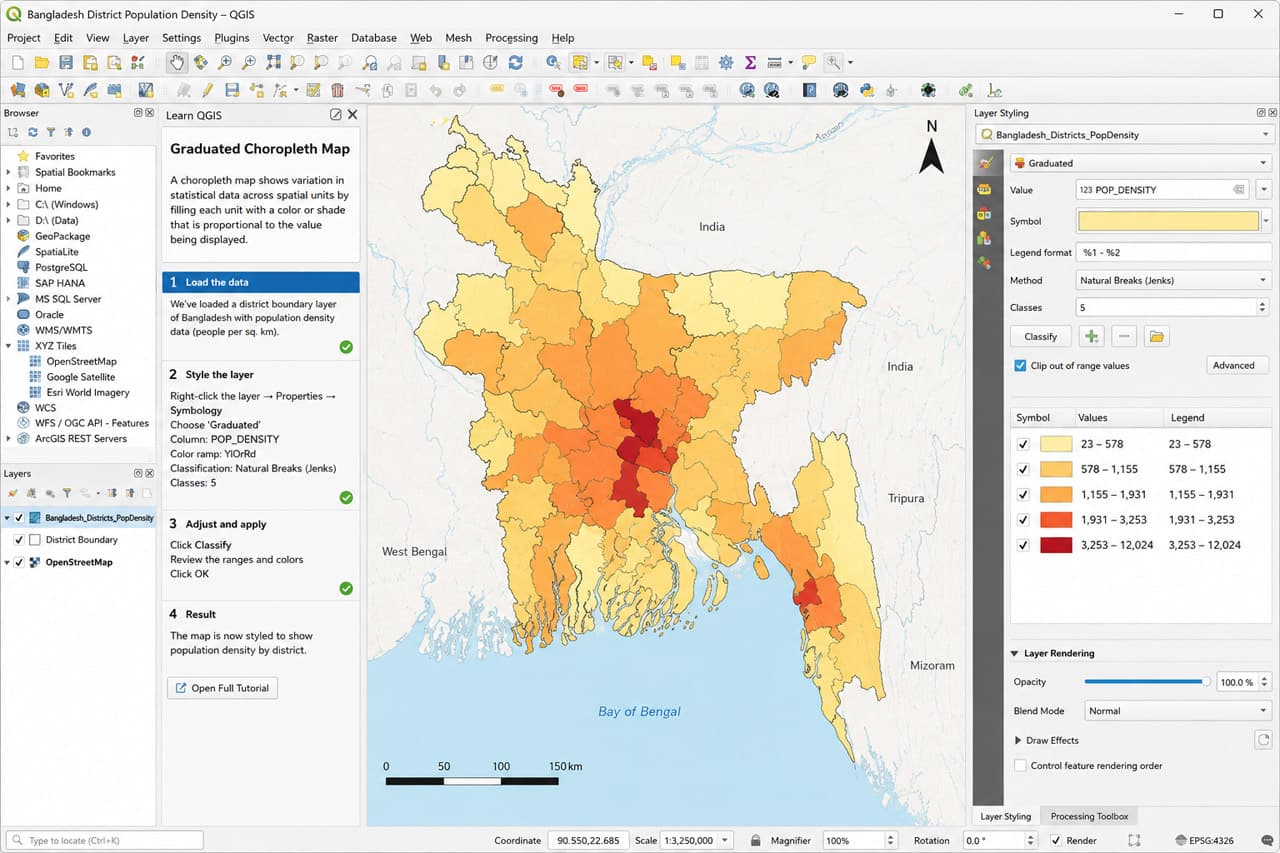
Hero image caption: QGIS choropleth screen showing Bangladesh district polygons styled by literacy rate, with the Layers panel on the left, map canvas in the centre, and Layout Manager ready for export.
A choropleth map of Bangladesh by district — showing literacy rate, flood risk, or population density — is one of the most useful things you can make in QGIS. Here’s exactly how to do it.
In this tutorial, we will create a district-level thematic map of Bangladesh using a district boundary shapefile and a CSV table containing a statistical value such as literacy rate. The same workflow works for population density, poverty rate, cyclone exposure, school coverage, dengue cases, or flood vulnerability.
What You’ll Need
Before opening QGIS, prepare your data properly. The most important rule is this: your shapefile and CSV must share one common field. For example, both files may contain a district code field named DIST_CODE. Joining by district name can work, but names often differ: “Chattogram” vs “Chittagong”, “Cox’s Bazar” vs “Coxs Bazar”, or spelling variations in Bangla transliteration. A code field is safer.
| File | Source | Format | Description | |
|---|---|---|---|---|
| —————————- | ————————————————————————————– | ————————– | ——————————————– | |
| Bangladesh district boundary | Humanitarian Data Exchange, Bangladesh government geoportal, or official agency source | SHP / GeoPackage / GeoJSON | Polygon boundary of 64 districts | |
| District literacy table | Bangladesh Bureau of Statistics or prepared sample dataset | CSV | District-wise literacy rate with DIST_CODE | |
| Optional base layer | OpenStreetMap / XYZ tiles | Web tile | Light reference background for orientation | |
| Optional logo/source note | Your organization or project | PNG / text | Used in final map layout | |
| QGIS project file | Created by you | QGZ | Saves layers, styling, joins, and layout |
For administrative boundaries, the Humanitarian Data Exchange hosts Bangladesh subnational administrative boundary data, including district-level boundaries, and Bangladesh’s GIS portal also lists administrative boundary datasets from national sources. (Humanitarian Data Exchange)
Loading the District Shapefile
Open QGIS and create a new project. Go to Layer → Add Layer → Add Vector Layer. Click Browse, select your Bangladesh district shapefile, and press Add.
What you should see: Bangladesh appears in the map canvas as a single-colour polygon layer. In the Layers panel, you should see a layer named something like bangladeshdistricts, bgdadm2, or Districts.
Now right-click the layer and choose Open Attribute Table. Check that each district has one row. Look for useful fields such as district name, division name, district code, or administrative code. If your shapefile has a field like ADM2PCODE, DISTCODE, or ZILA_CODE, write it down. This will be your join key.
Next, set the project CRS. For a Bangladesh thematic map, you can use a geographic CRS such as WGS 84 for simple display, but for area-based calculations like population density, use an appropriate projected CRS. If you calculate density using square kilometres, do the calculation in a projected coordinate system, not directly from latitude-longitude geometry.
Joining Your Attribute Data
Now add your CSV. Go to Layer → Add Layer → Add Delimited Text Layer. Browse to your CSV file, choose CSV, set geometry definition to No geometry, and click Add.
What you should see: the CSV appears in the Layers panel as a table, but it does not draw anything on the map. That is normal. Open its attribute table and confirm that it contains DISTCODE and a value field such as literacyrate.
To join manually, right-click the district layer, choose Properties, then go to Joins. Click the green + button. Select the CSV as the join layer. Choose DISTCODE as the join field and DISTCODE as the target field. Click OK, then Apply.
What you should see: when you reopen the district attribute table, new columns from the CSV appear at the end. They may be prefixed with the CSV layer name, such as Literacyliteracyrate. QGIS table joins connect external attributes to a spatial layer using matching fields; QGIS documentation and tutorials commonly describe this as the standard way to create a mappable dataset from boundaries plus statistics. (<a href="https://docs.qgis.org/latest/en/docs/usermanual/processingalgs/qgis/vectorgeneral.html?utm_source=chatgpt.com”>QGIS Documentation)
You can also do the join from the QGIS Python console:
from qgis.core import QgsVectorLayer, QgsProject

# Load shapefile
districts = QgsVectorLayer("/data/bangladesh_districts.shp", "Districts", "ogr")

# Load CSV
csv_path = "file:///data/district_literacy.csv?delimiter=,&xField=none&yField=none"
literacy = QgsVectorLayer(csv_path, "Literacy", "delimitedtext")

# Join by district code
from qgis.core import QgsVectorLayerJoinInfo
join_info = QgsVectorLayerJoinInfo()
join_info.setJoinLayer(literacy)
join_info.setJoinFieldName("DIST_CODE")
join_info.setTargetFieldName("DIST_CODE")
districts.addJoin(join_info)

QgsProject.instance().addMapLayer(districts)
After running it, check the Layers panel. You should see the Districts layer loaded. Open the attribute table and confirm that the joined literacy field is visible.
Styling the Choropleth
Right-click the district layer and choose Properties → Symbology. Change the renderer from Single Symbol to Graduated. In the Value dropdown, choose your joined numeric field, such as Literacyliteracyrate.
Now choose a colour ramp. For literacy rate or population density, use a sequential palette: light colour for low values, darker colour for high values. Set Mode to Natural Breaks (Jenks) or Quantile. For a national district map, 5 classes is usually enough. Click Classify, then Apply.
What you should see: districts now appear in different shades. The legend in the Layers panel shows class ranges such as 45–55, 55–65, and so on.
A note on <a href="https://colorbrewer2.org/?utmsource=chatgpt.com”>ColorBrewer palettes: use sequential schemes for ordered low-to-high data such as literacy, population density, rainfall, or poverty rate. Use diverging schemes when values move around a meaningful midpoint, such as change from national average, positive/negative growth, or risk above and below a threshold. Use qualitative schemes for categories, such as division names, land-use classes, or project zones. ColorBrewer explains these three scheme types and is widely used for map colour advice. (<a href="https://colorbrewer2.org/learnmore/schemesfull.html?utm_source=chatgpt.com”>ColorBrewer)
Adding Map Elements
Once the map looks good, go to Project → New Print Layout. Give it a name such as BangladeshLiteracyChoropleth.
In the layout window, click Add Map, then drag a rectangle on the page. Your map appears. Adjust the scale until Bangladesh fills the page nicely.
Now add the essential map elements:
- Title: Click Add Label and write “District-wise Literacy Rate in Bangladesh”.
- Legend: Click Add Legend. Remove unnecessary layers from the legend if needed.
- Scale bar: Click Add Scale Bar and place it near the bottom.
- North arrow: Click Add Picture, then choose an SVG north arrow from QGIS’s built-in options.
- Source note: Add a small label: “Boundary: HDX / official administrative boundary source; Data: BBS/sample literacy table; Map: Your Name, 2026.”
What you should see: a clean page layout with the map in the centre, title at the top, legend on one side, and source note at the bottom. Do not skip the source note. A map without a data source is hard to trust.
“The first time one of my QGIS maps appeared in a government report, I realised the layout mattered as much as the analysis. The data was not new, but the map made the pattern understandable to decision-makers.” — A QGIS user from Bangladesh
Exporting Your Map
When the layout is ready, click Layout → Export as PDF for reports, or Export as Image for presentations and websites. Use 300 DPI for print-quality output. If the map will be used in PowerPoint, PNG is usually better than JPEG because text and boundaries remain sharper.
Before exporting, zoom in and check district boundaries, legend labels, spelling, and class ranges. If the map is for a formal report, include the date of data, boundary source, projection, and author.
Common thematic mapping mistakes to avoid:
- Too many classes: more than 5–7 classes often makes the map difficult to read.
- Poor colour choice: rainbow colours can mislead readers; use logical sequential or diverging palettes.
- Missing north arrow: especially important for formal layouts and non-GIS audiences.
- Incorrect projection: dangerous when calculating area, distance, or density.
- No data source citation: always cite boundary and statistical data sources.
Finally, save your QGIS project as a .qgz file. Keep your shapefile, CSV, and project file in one folder so the project does not break when moved to another computer.
A district choropleth map may look simple, but it teaches the core workflow of applied GIS: boundary data, attribute data, table join, classification, cartographic styling, layout design, and export. Once you master this, you can map almost any district-wise indicator in Bangladesh—from literacy to climate vulnerability.
Sources / References
- <a href="https://docs.qgis.org/latest/en/docs/trainingmanual/vectorclassification/classification.html?utm_source=chatgpt.com”>QGIS Training Manual: Classification / Graduated Symbology
- <a href="https://docs.qgis.org/latest/en/docs/usermanual/processingalgs/qgis/vectorgeneral.html?utm_source=chatgpt.com”>QGIS Documentation: Join Attributes by Field Value
- <a href="https://www.qgistutorials.com/en/docs/3/performingtablejoins.html?utm_source=chatgpt.com”>QGIS Tutorials: Performing Table Joins
- <a href="https://colorbrewer2.org/learnmore/schemesfull.html?utmsource=chatgpt.com”>ColorBrewer Scheme Types







Responses (0 )